Notifications
Guide to the MoveData Notifications interface covering list navigation, filtering, and monitoring.
Understanding MoveData Notifications
MoveData notifications are the standardised data packages that flow through the MoveData lifecycle, transforming fundraising platform events into actionable Salesforce records. The Notifications interface provides comprehensive visibility and management capabilities for these data transactions, ensuring your integrations operate smoothly and reliably.
What Are Notifications?
A notification represents a single event or transaction that has been captured from your fundraising platform and processed through the MoveData transformation pipeline. Each notification contains all the necessary information to create or update records in Salesforce, including:
- Primary event data from the original transaction
- Supporting context such as donor information and campaign details
- Execution logs showing how the data was processed
- Salesforce objects listing the records that were involved in the transaction
Accessing Notifications
Navigation
- Open MoveData: From your Salesforce org, navigate to the App Launcher and select "MoveData"
- Access Notifications: Click on the "Notifications" tab within the MoveData Lightning application
- View All Notifications: The interface opens to the "All Notifications" list view showing your complete notification history
Notifications List View
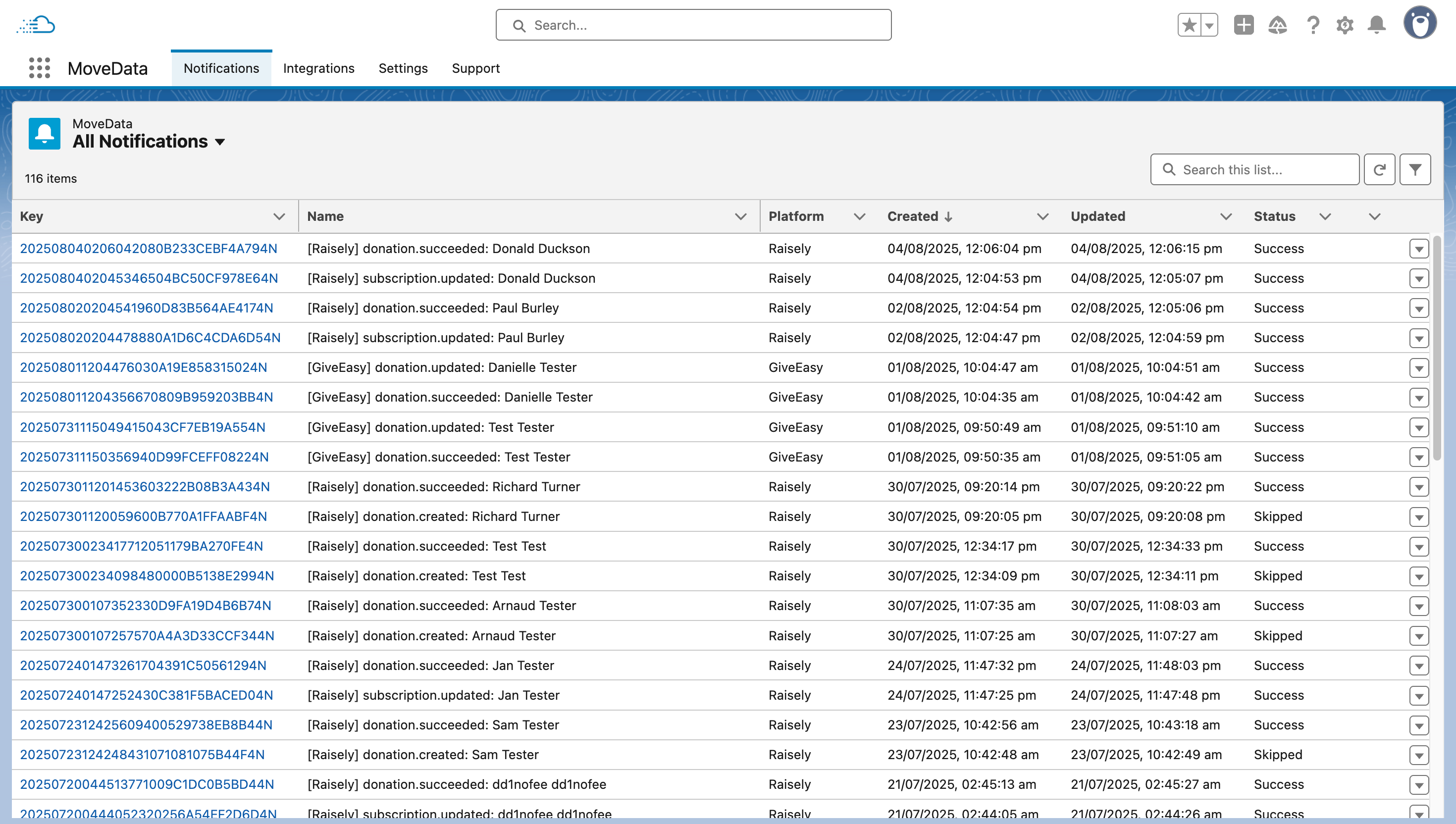
The Notifications interface displays a comprehensive list of all notifications processed by MoveData, with the following key elements:
List View Header
- Total Count: Shows the number of notifications (e.g. "116 items")
- Search Bar: Located in the top right for finding specific notifications
- Filter Controls: Advanced filtering options to narrow down results
Notification Columns
- Key: Unique notification identifier (clickable link to notification details)
- Name: Descriptive name showing the platform and event type
- Platform: Source platform (Raisely, GiveEasy, etc)
- Created: Date and time when the notification was first received
- Updated: Date and time of the last modification to the notification
- Status: Current processing status of the notification
Notification Statuses
MoveData notifications can have several status values that indicate their current state:
-
Success: The notification has been successfully processed and executed in Salesforce. All associated records have been created or updated correctly.
-
Skipped: The notification was intentionally skipped based on your business rules or configuration settings. This is normal behaviour for certain types of events.
-
Failed: An error occurred during processing or execution. The notification requires attention before it can be successfully processed into Salesforce.
-
Processing / Queued: The notification is currently being prepared for processing into Salesforce.
Filtering and Searching Notifications
Pre-built Filter Views
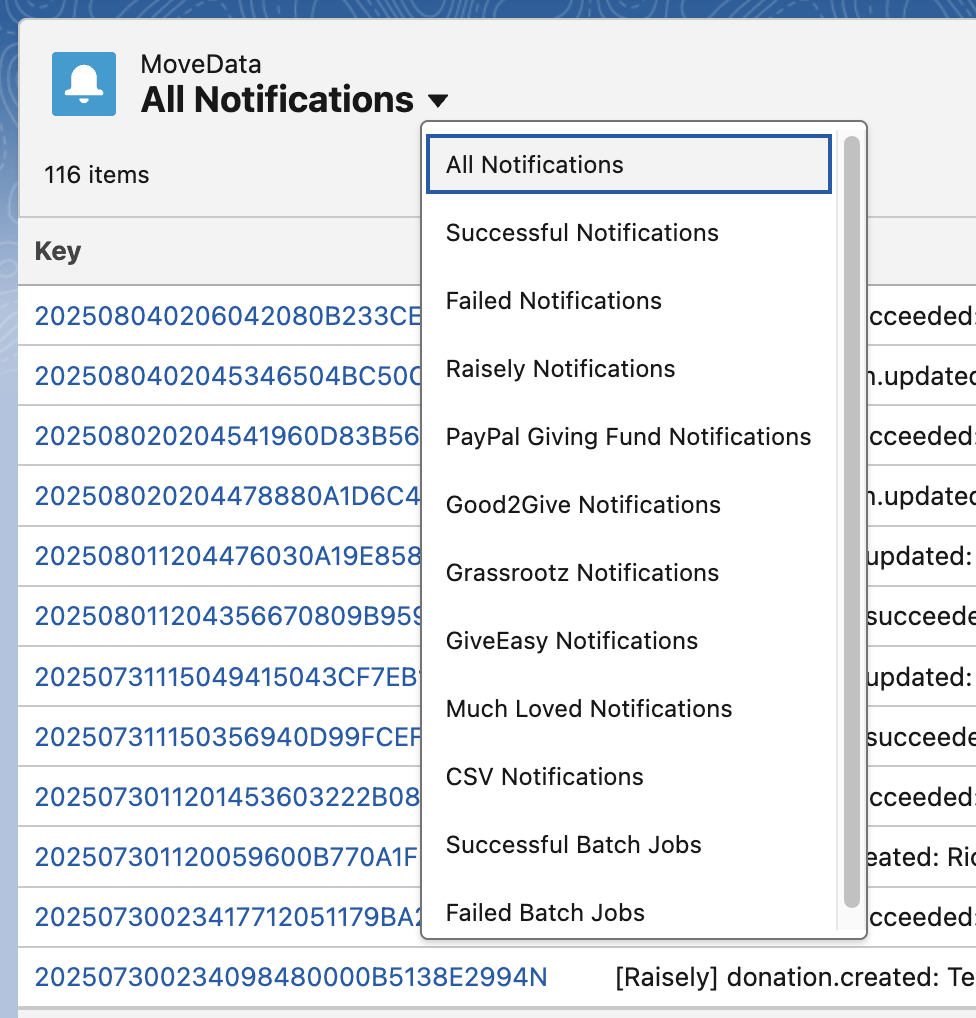
MoveData provides several pre-built filter views accessible from the dropdown menu next to "All Notifications":
- All Notifications: Complete list of all notifications
- Successful Notifications: Only notifications with "Success" status
- Failed Notifications: Only notifications with "Failed" status
- {Platform} Notifications: A view for each platform you are integrated with
- Successful Batch Jobs: Successfully completed batch processing jobs
- Failed Batch Jobs: Batch jobs that encountered errors
Advanced Filtering
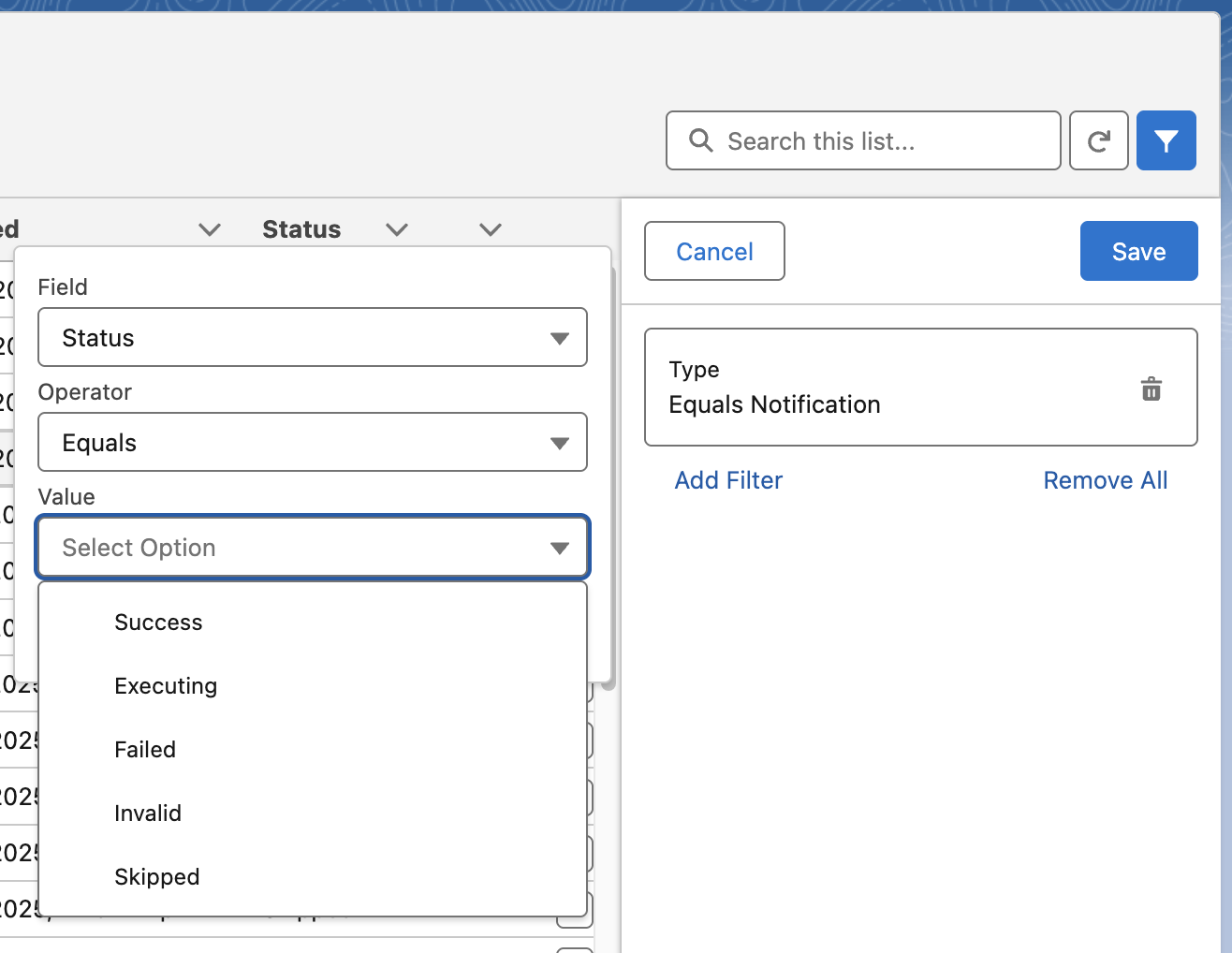
Use the filter panel to create custom views:
- Add Filter: Click "Add Filter" to create custom filter criteria
- Available Fields: Filter by Name, Status, Updated, Created, Review, Platform, or Type
- Multiple Conditions: Combine multiple filters for precise results
- Save: Applies the filter combination and updates the list view
Search Functionality

The search bar allows you to quickly locate specific notifications:
- Search by notification name or description
- Search by donor names or platform identifiers
- Use partial text matching to find related notifications
Context Menu
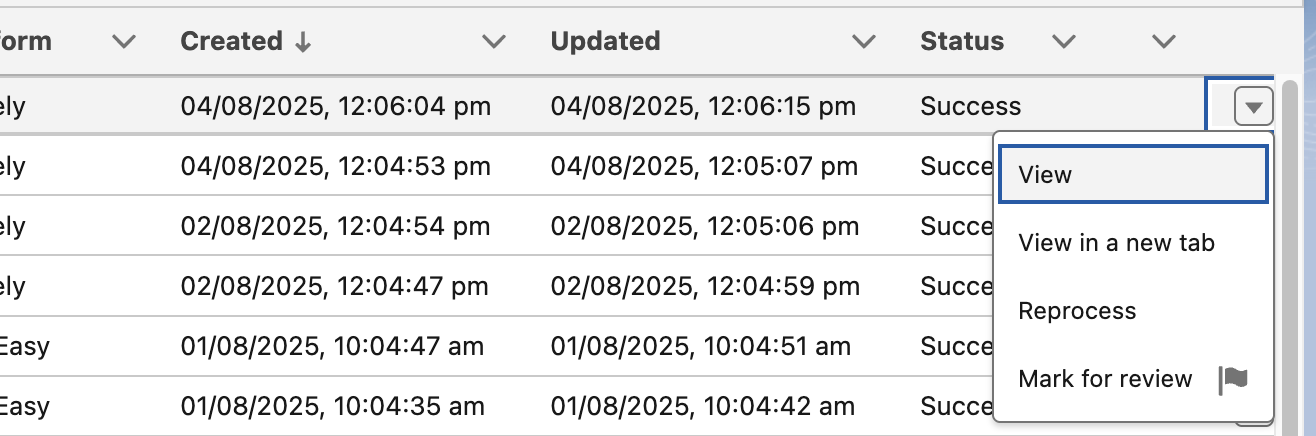
Each notification row includes an action menu (accessed via the dropdown arrow) with the following options:
-
View: Opens the detailed notification view showing complete processing information, raw data, and transformation results.
-
View in a new tab: Opens the notification details in a separate browser tab, useful for comparing multiple notifications.
-
Reprocess: Attempts to process the notification again, useful for notifications that initially failed due to temporary issues.
-
Mark for review: Flags the notification for manual review, adding it to a special review queue for investigation.
Notification Detail View
Clicking on a notification from the list view opens the comprehensive Notification Detail View. This interface provides complete visibility into notification processing, data transformation, and resulting Salesforce records.

Detail View Header
The notification detail page opens with key information displayed prominently at the top:
- Notification Key: The unique notification key (e.g. "20250804020604208082333CBF4A794N")
- Event Description: Full descriptive name of the notification event
- Action Buttons:
- Reprocess: Retry processing this notification if it failed or needs to be run again
- Mark for Review: Flag this notification for further investigation
Status Summary
- Status: Current processing state (Success, Failed, Processing, etc)
- Platform: Source fundraising platform (Raisely, GiveEasy, etc)
- Created Date: When the notification was first received
- Update Date: When the notification was last modified
Notification Summary
The Summary tab provides an overview of notification processing and results, organised into three main sections:
Details Section
The Details section shows core processing information:
- Notification Key: The unique notification key (e.g. "20250804020604208082333CBF4A794N")
- Name: Full descriptive name of the notification event
- Status: Current processing status with any relevant status messages
- Message: Processing outcome description (e.g. "Successfully executed")
- Created Date: Initial notification timestamp
-
Update Date: Most recent processing timestamp
-
Payloads Section
The Payloads section provides access to the raw data at different stages of processing:
Note
Use the arrow indicators to expand these sections and view the complete payload data.
-
{Platform} Notification: Expandable section containing the original, unprocessed data as received from the fundraising platform. This shows exactly what was sent by the platform before any MoveData transformation. For some platforms, MoveData downloads additional data from a platform's API and appends this to a sub-section called Metadata.
-
MoveData Notification: Expandable section containing the standardised notification data after MoveData has processed and transformed the original platform data. This represents the clean, standardised format used for Salesforce record creation.
-
Records Section
The Records section displays all Salesforce records that were created or updated as a result of processing this notification. This is often grouped by the execution phases of the transaction.
Each record link includes:
- Salesforce Icon: Visual indicator of the record type
- Record Name: Clickable link that opens the record in Salesforce
- Object Type: Salesforce object type (Contact, Campaign, Opportunity, etc.)
Notification Execution Log
The Notification Execution Log, accessible via the Execution tab(s), provide detailed, real-time visibility into every step of notification processing. This comprehensive log shows the chronological sequence of processing stages, timing information, and the ability to inspect variables and data at each step.
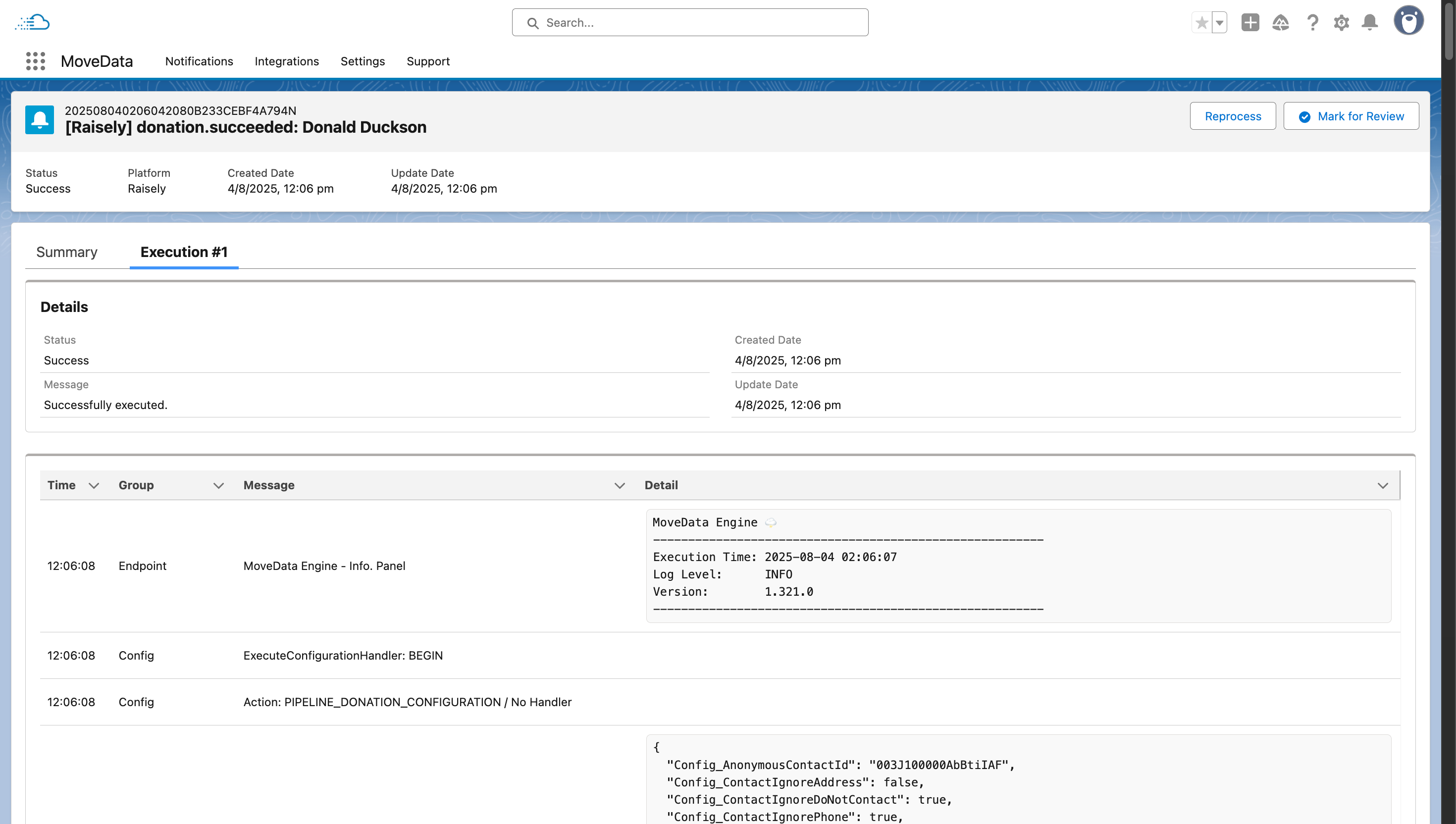
Execution Log Interface
The Execution Log is organised into:
- Time: Exact time when each processing step occurred (e.g. "12:06:08")
- Group: The name of the processing stage being executed
- Message: High level message or subject for the detail
- Detail: Detailed information supporting the subject in the message
Variable Inspector
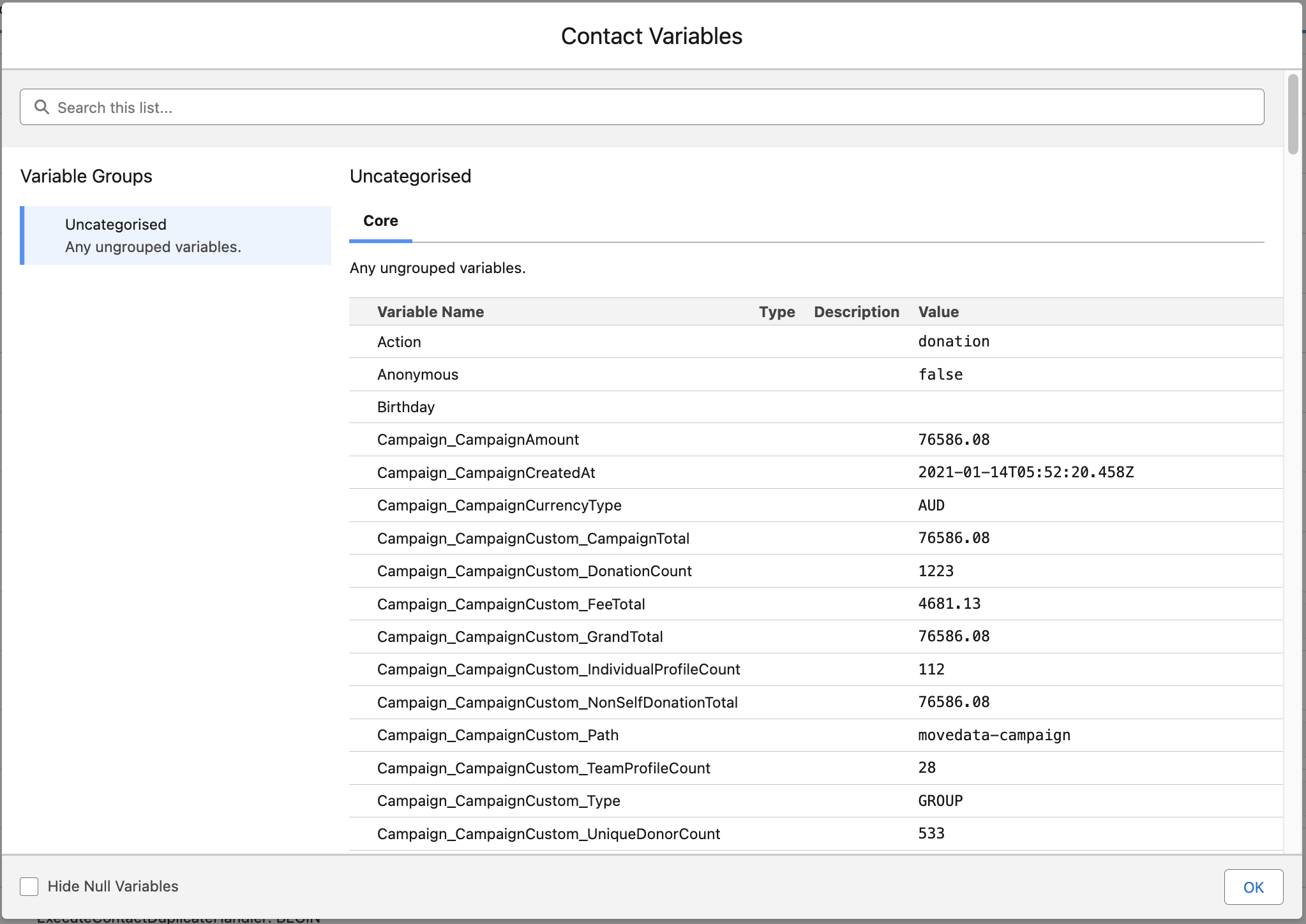
The Variable Inspector provides detailed visibility into the variables at any point during a processing phase / group. For example, the Contact phase of a donation notification will contain contact-specific for the contact being processed. These variables are presented using the name that is made available to Salesforce Lightning Flows; to write your own business logic using these variables, please refer to the Developer site.
Accessing Variable Data
- Variable Popup: Click the "View Variables" button to open the detailed Variable Inspector window
The Variable Inspector window shows:
- Variable Groups: Data organised by logical categories (Core, Address, Uncategorised, etc.)
- Search Functionality: Quickly locate specific variables using the search bar
- Variable Details Table: Complete listing with columns for:
- Variable Name: The field identifier used in processing
- Type: Data type (text, number, boolean, date, etc.)
- Description: Human-readable explanation of the variable's purpose
- Value: Current value at this processing stage
Filter Options
- Hide Null Variables: Checkbox to focus only on variables with values
- Variable Group Tabs: Switch between different categories of variables
Using the Execution Log for Troubleshooting
Identifying Processing Issues
- Scan Timeline: Look for any stages that show error indicators or unusual timing
- Check Stage Output: Click on failed or suspicious stages to examine their data output
- Compare Variables: Use the Variable Inspector to see how data changes between stages
- Trace Data Flow: Follow specific field values through multiple processing stages
Data Validation
- Field Mapping Verification: Confirm that source data is correctly mapped to expected variables
- Business Rule Application: See how custom business rules modify data during processing
- Transformation Tracking: Follow how raw platform data becomes standardised MoveData format
The Notification Execution Log serves as your comprehensive diagnostic tool for understanding exactly how MoveData processes each notification, providing complete transparency into the data transformation pipeline and enabling effective troubleshooting of any integration issues.